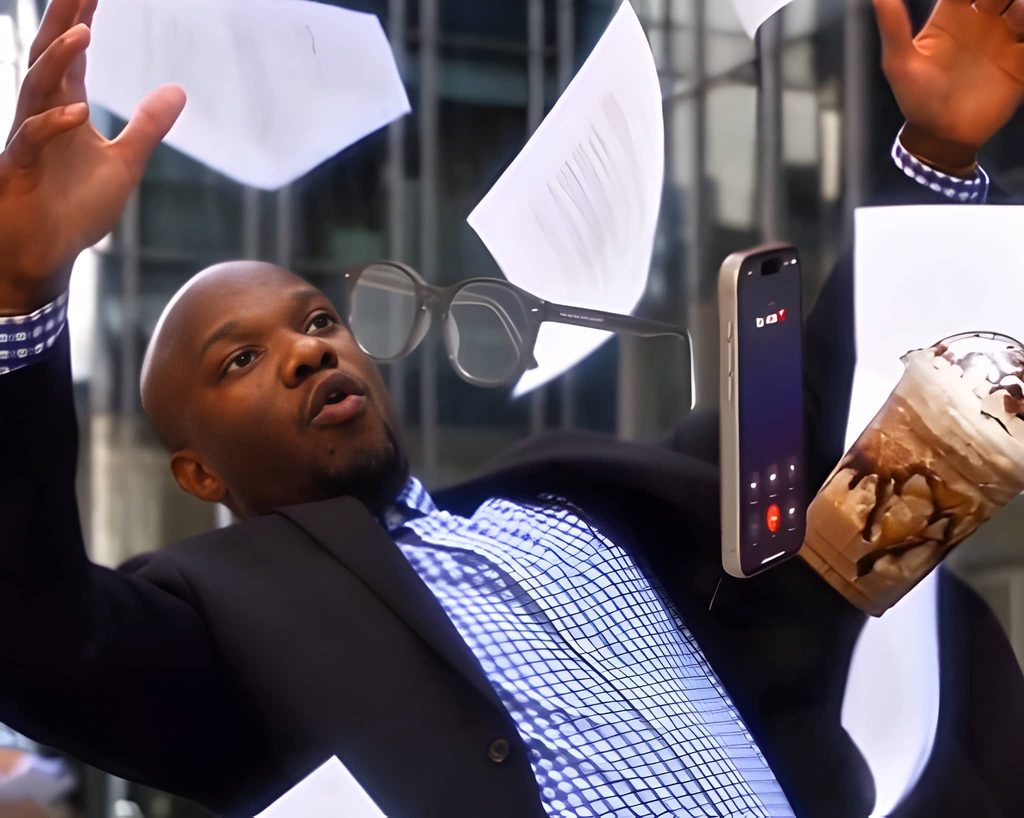
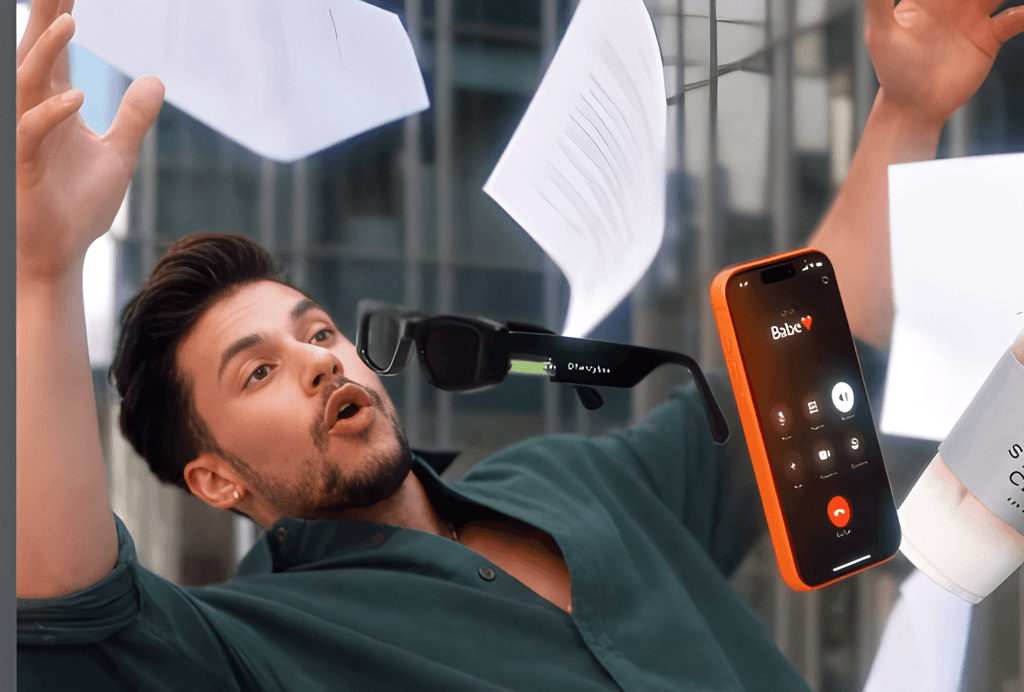
You’ve probably seen these videos on your feed: a cinematic, stylised clip where a character moves through a scene with polished camera work and a look that feels made for TikTok and Reels. They look like they took a production team, but you can make one yourself with AI in three steps.
Step 1: Download your reference video
Start by finding the trending video you want to recreate. This is your reference video. The AI uses it as a guide for motion, pacing and camera movement.
Save it to your device. Pick a clip with clear movement and a strong visual style, because the cleaner the reference, the better your result.
Step 2: Create your reference images
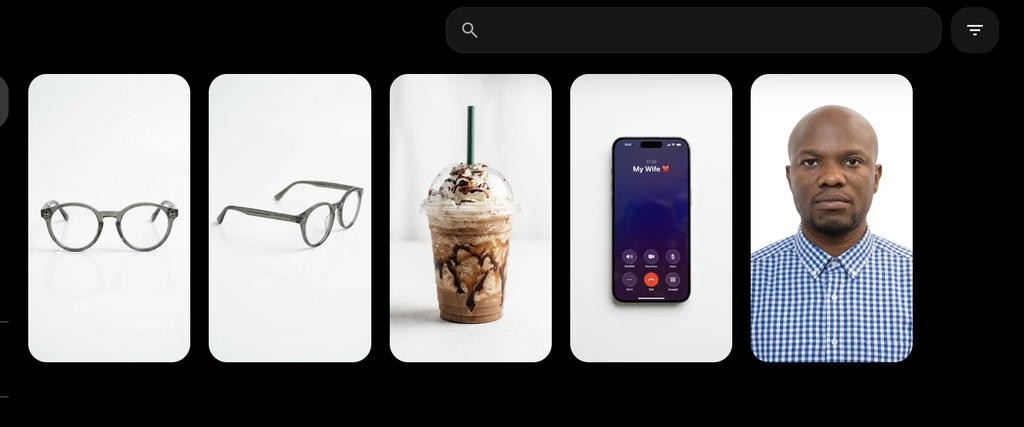
Next, create reference images for everything you want in your version. In this example, that means:
- Your character: the person or persona who will star in the video
- The glasses: a key accessory that gives the character its signature look
- The drinks: the props that appear in the scene
Each element gets its own clear image. This tells the AI exactly what your character and props should look like, so they stay consistent from frame to frame instead of changing between shots.
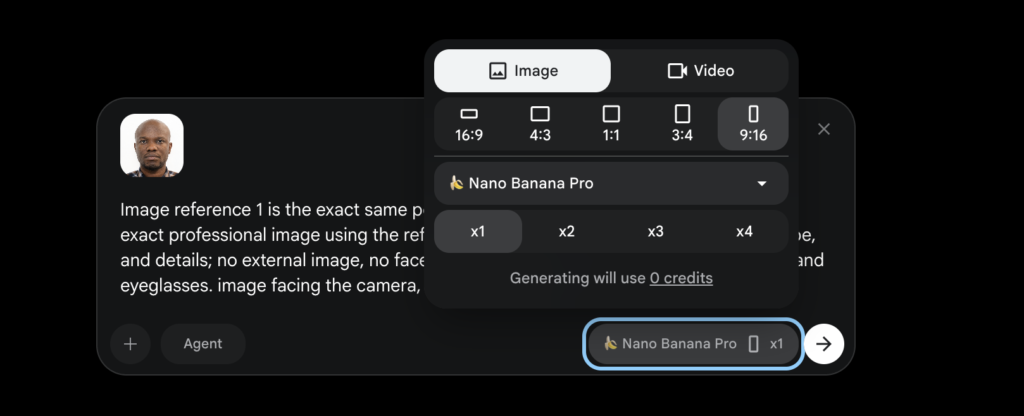
Create an exact professional image using the reference images. Ensure it's the exact face, shape, and details; no external image, no face retouching and no face change. image facing the camera, white background
Tip: use clean, well-lit images with plain backgrounds. The less clutter there is, the more accurately the AI can pick out each element.
Step 3: Upload everything to Higgsfield
Now gather all your materials:
- The reference video you downloaded
- The reference images you created
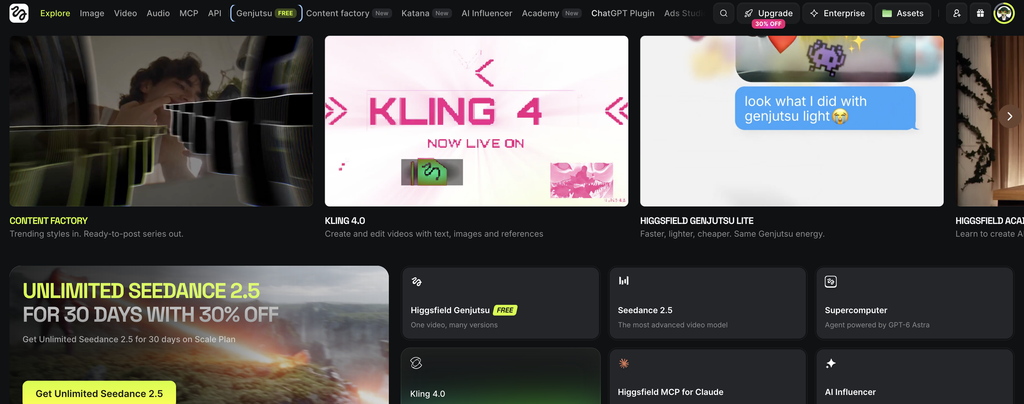
- Go to Higgsfield https://higgsfield.ai/,
- Select Genjutsu or visit https://higgsfield.ai/ai/video?model=genjutsu,
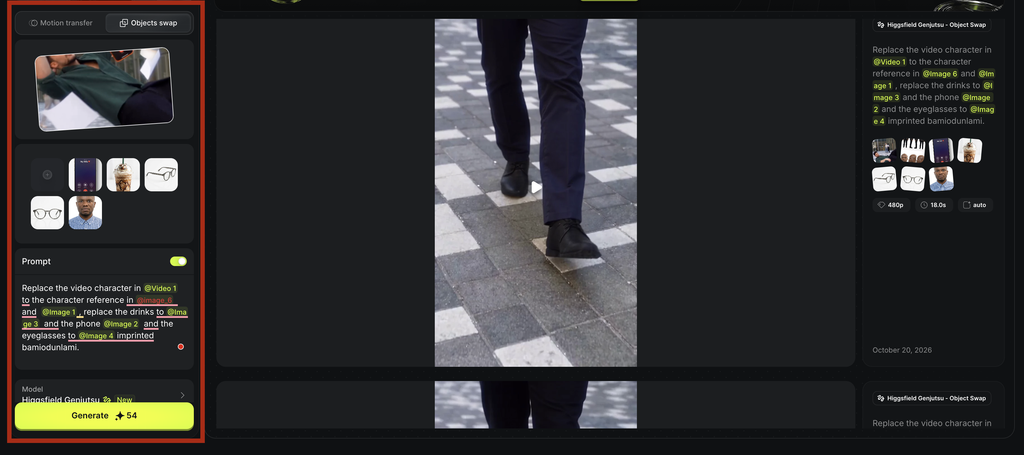
- Click Object Swap
- Upload the reference video and your reference images.
- Then enter your prompt. The prompt describes how everything should come together: the scene, the mood, and how your character interacts with the props.
Then let Higgsfield do the rest. It combines the motion from your reference video with the character and props from your images to produce your own version of the trend.
The prompt
The prompt makes a big difference to the final result. Here’s the full prompt I used for this video:
Replace the video character in @[Video 1](video_1) to the character reference in @[Image 1](image_1) , replace the drinks to @[Image 3](image_3) and the phone @[Image 2](image_2) and the eyeglasses to @[Image 4](image_4) imprinted bamiodunlami.
Copy it, swap in your own character and props, and adjust it to suit your style.
See it in action
Final thoughts
Recreating trending videos with AI comes down to three things: a strong reference video, clear reference images, and a well-written prompt. Once you’ve done it once, you can repeat the process for any trend and get on it while it’s still hot.
Try it this week and tag me in what you make.